Shares
Share documents with selected Lunr users through a Secure link or a Transmittal, and manage a share's documents, members, and comments.
Secure Link and Transmittal Shares
When you create a share, you choose between two types:
- Secure link: share documents with selected Lunr users without requesting confirmation of receipt.
- Transmittal: share documents with selected Lunr users while additionally supporting a Send step, an Acknowledge step, a Reason field, an external contact record, and cover sheet exports.
The Shares Tab
The Shares tab lists every share you are a member of. Enter part of a subject in the Filter shares field, or select the sliders icon or the Filter button to narrow the list further.
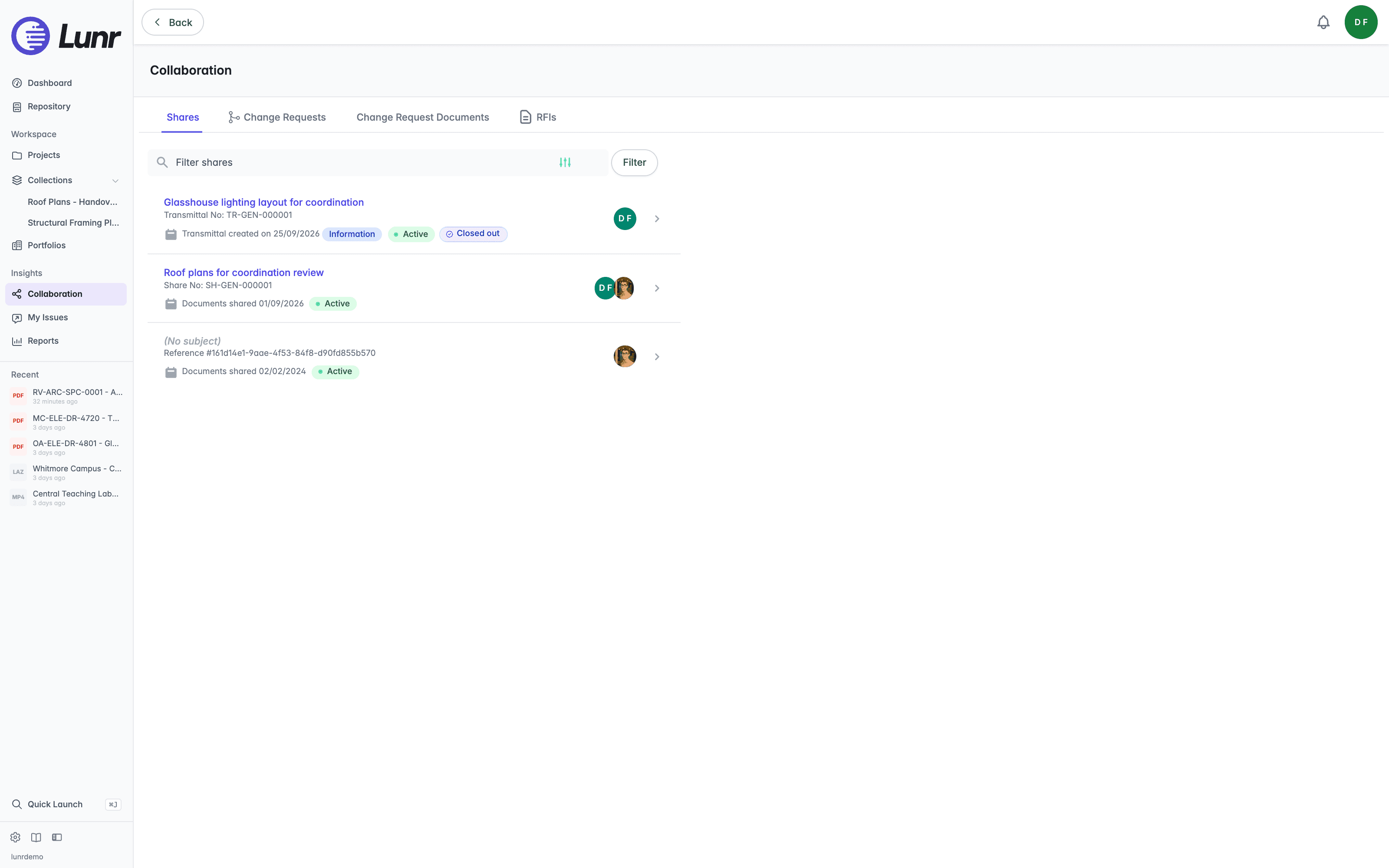
Each row shows the subject, or "(No subject)" in italics when none was set, the share number or reference number, a calendar icon with the date documents were shared, a status pill, and the member avatars. Select a row to open that share.
Creating a Share
Select one or more documents with the row selection boxes from a search results page, the repository, a collection, a project, or a change request, then select Share in the Action Pane.
- Choose Secure link or Transmittal, then select Next.
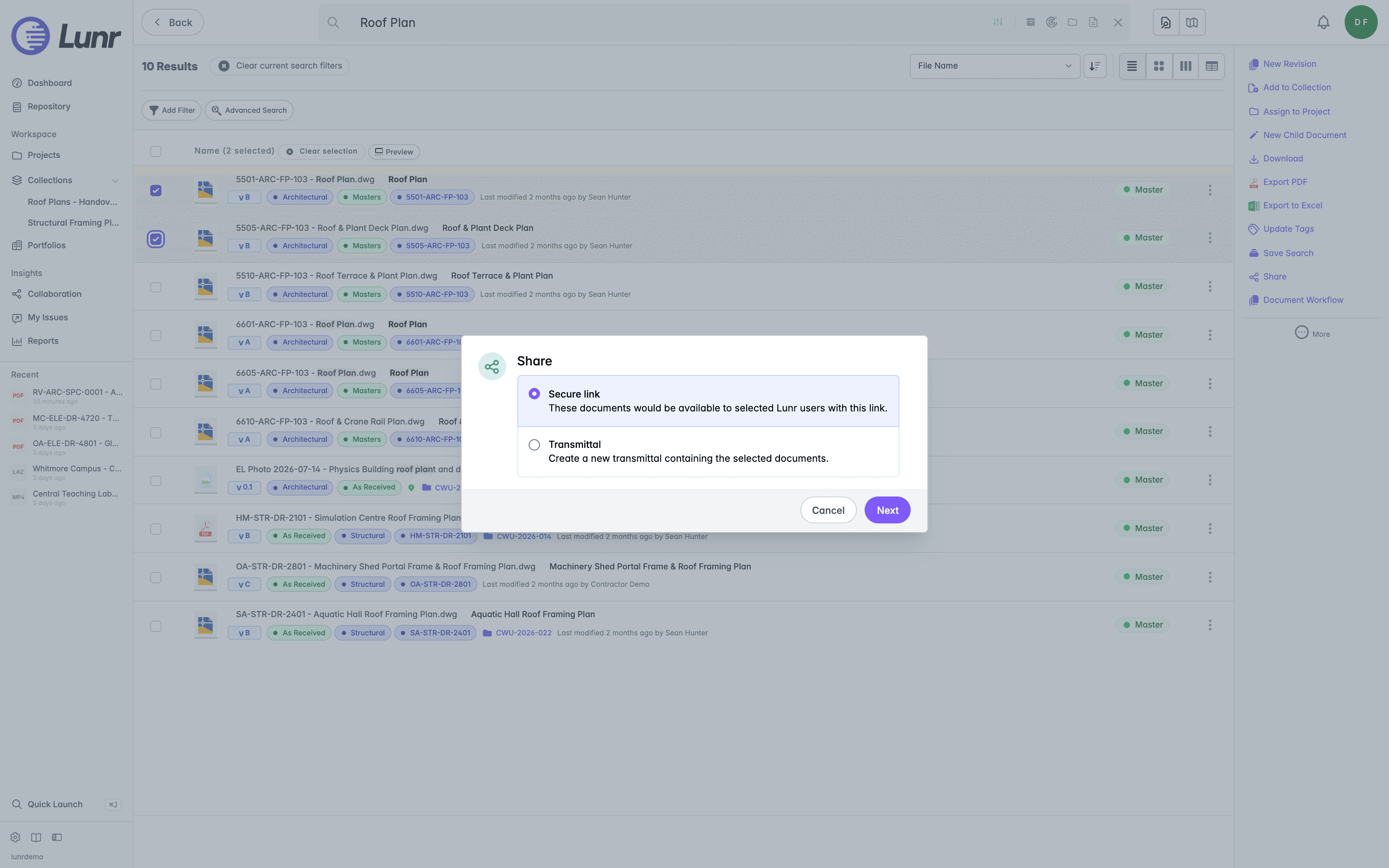
- Fill in the fields for the type you chose, then select Send for a Secure link or Create for a transmittal.
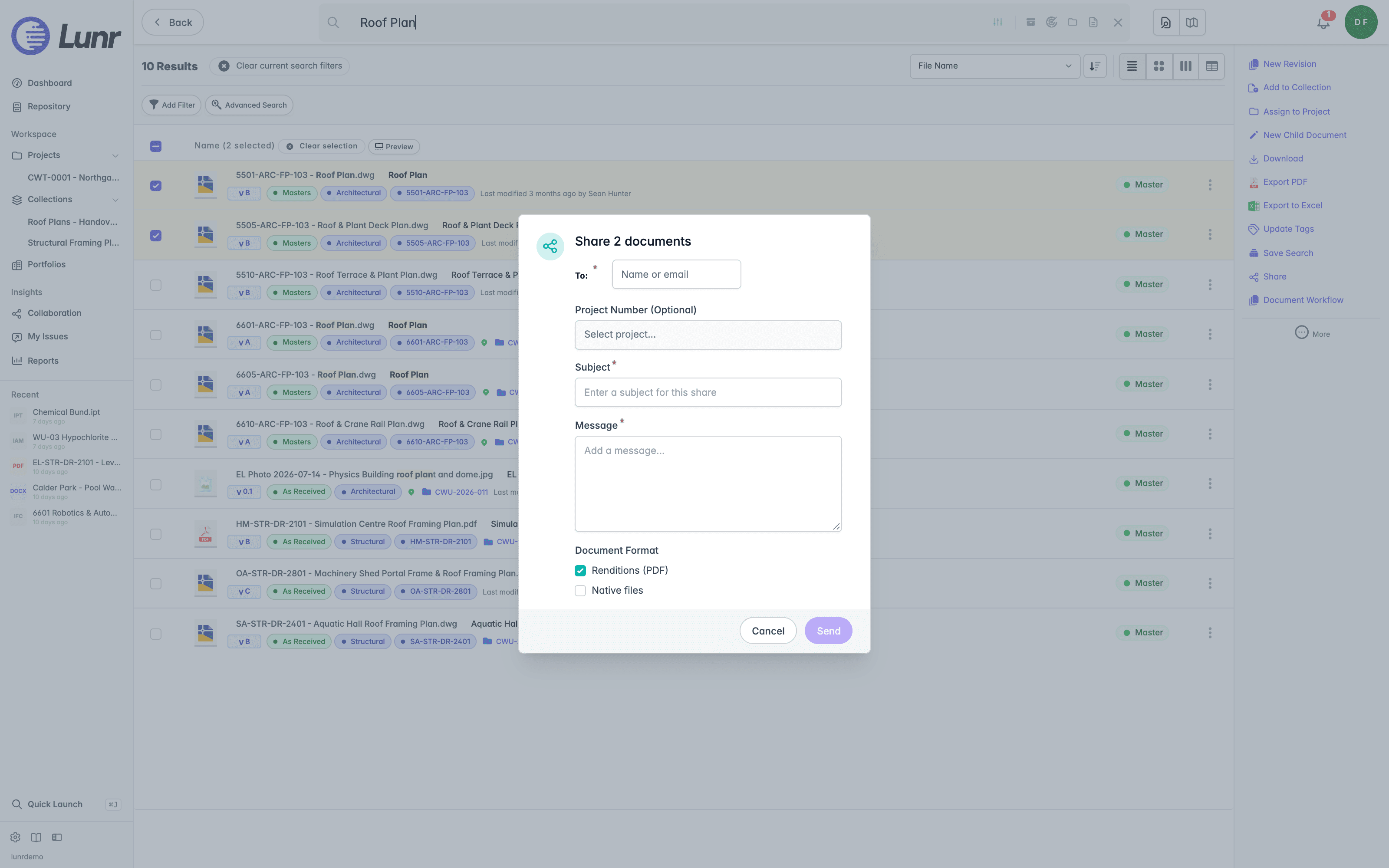
A Secure link asks for a To field (enter a name or email, though the lookup only returns existing Lunr users), an optional Project Number, a Subject, and a Message. To, Subject, and Message are required and marked with an asterisk. If you can share native files, a Document Format section also offers Renditions (PDF) and Native files. Select either or both: a share with both formats carries each document's PDF rendition and its native file. Renditions (PDF) is selected by default, and at least one format must stay selected. If you cannot share native files, the share is created with renditions. A transmittal adds a Reason field, an optional Change Request field, and an "Add external contact (non-Lunr)" box that reveals Contact Name and Contact Company fields.
If you try to send without the required fields, Lunr shows validation messages in this order: "Please select one or more recipients", "Please include a subject", "Please include a message", and "Please choose at least one document format". On success, Lunr shows "The new document share is now live, share recipients have been notified" and opens the new share. You are added as a member automatically when you create a share, and you can never be removed as a member yourself.
Sending to Distribution Groups
Where your organisation has set up distribution groups, one transmittal step can send documents to several user groups, with each group receiving only the documents meant for it. The Use distribution groups option appears on the transmittal step when the repository has distribution groups and you are allowed to use them.
- Select the documents, select Share, choose Transmittal, then select Next.
- Select Use distribution groups. The To field and the external contact fields are replaced by "Each matching group's members".
- Fill in the other fields, then select Review Distribution.
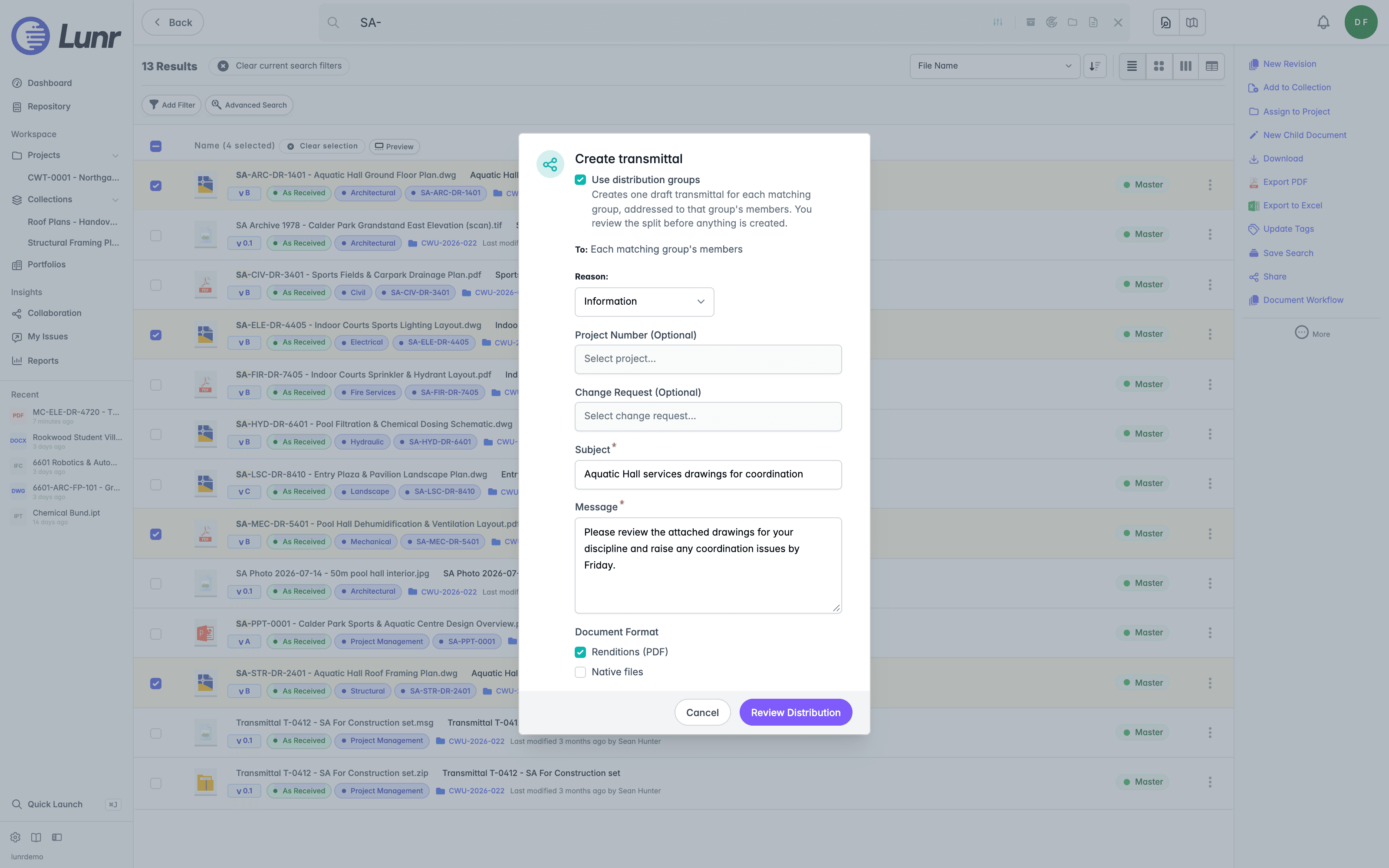
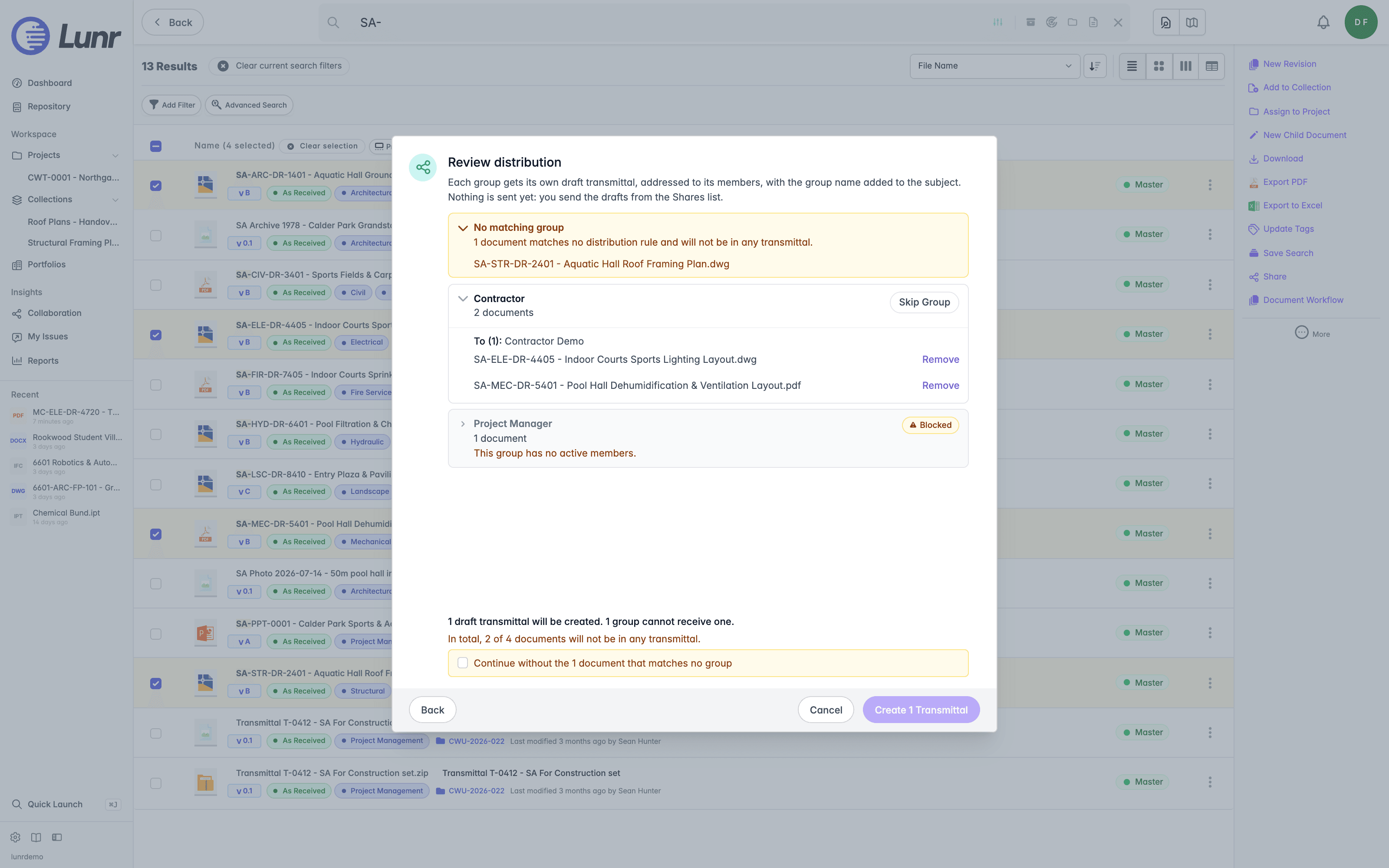
- Check the split in the Review distribution step. Documents that match no group are listed first, under No matching group. Select a group to expand it and see its members and the documents it will receive.
- Select Skip Group to leave a group out, and Include Group to bring it back.
- Select Remove beside a document to leave it out of that group's transmittal, and Restore to put it back.
- A group that cannot receive a transmittal, for example because it has no active members, is marked Blocked with the reason.
- If any documents match no group, select the box confirming that you want to continue without them.
- Select Create Transmittals, which shows how many will be created, for example Create 3 Transmittals.
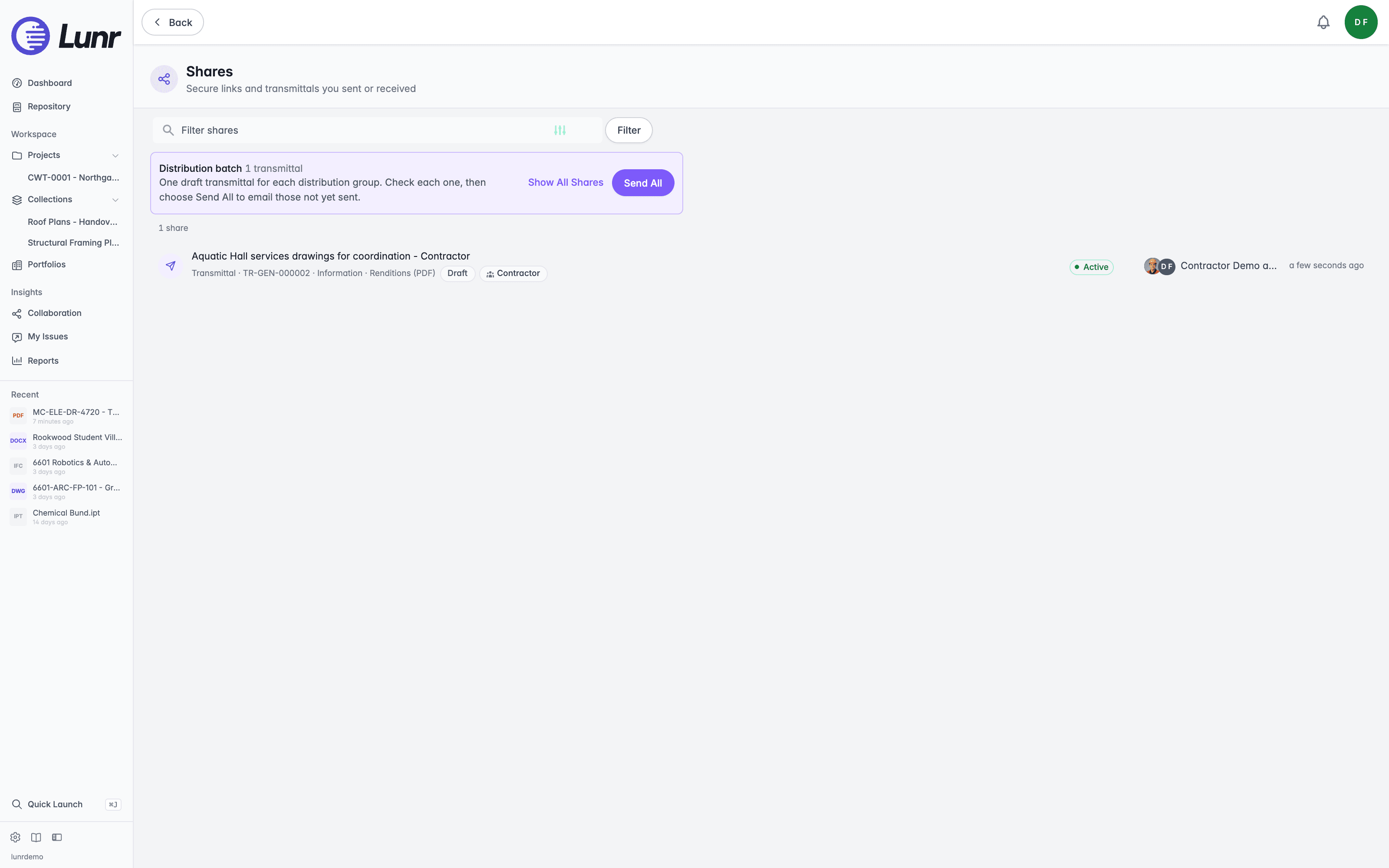
Lunr creates one draft transmittal for each group, addressed to its members, with the group name added to the subject. Nothing is sent yet. The Shares tab opens showing only the new batch under a Distribution batch banner, where each draft carries a Draft pill and its group name. Select Show All Shares to return to the full list. Check each transmittal, then select Send All and confirm to send the whole batch.
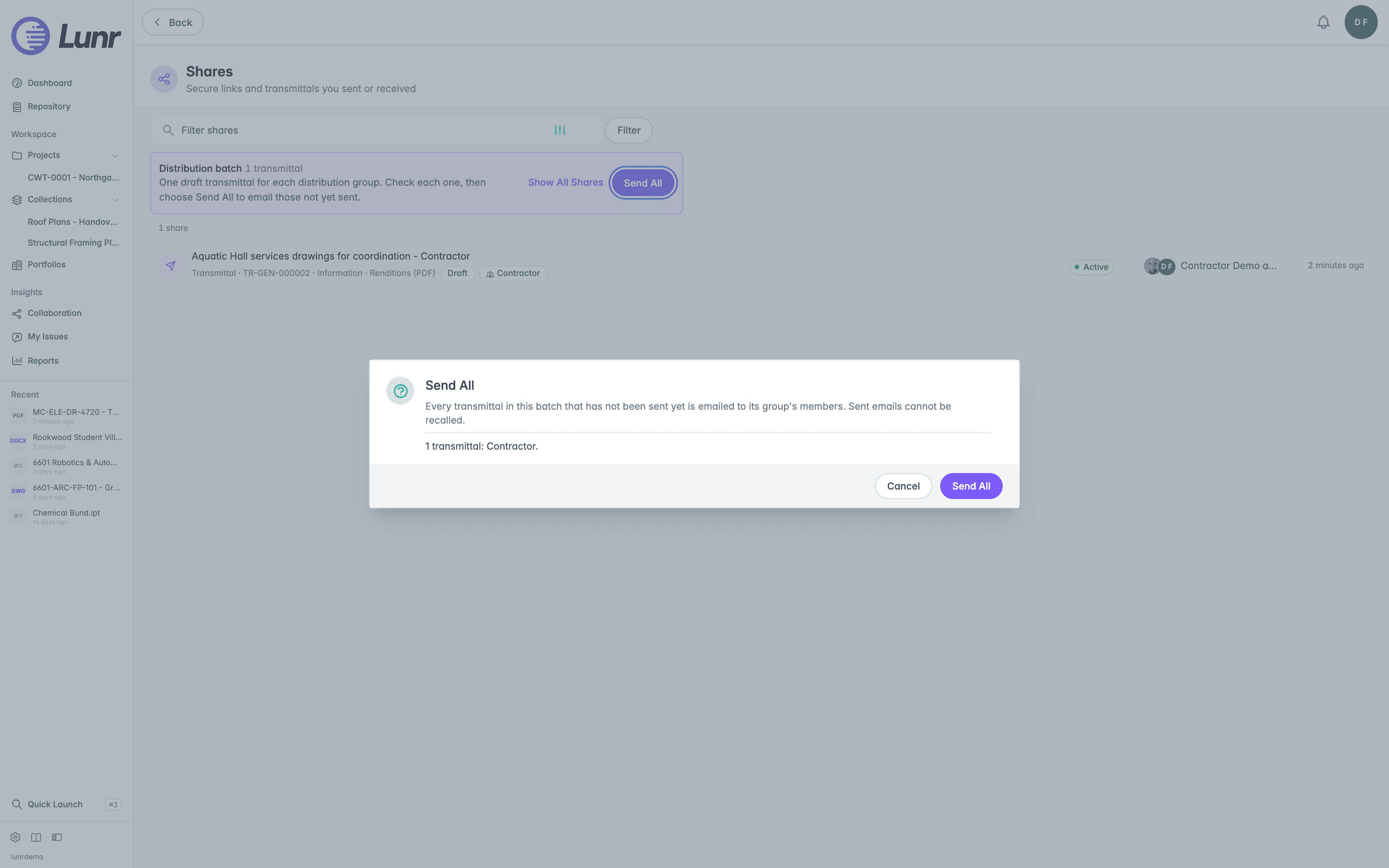
The Send All confirmation lists the transmittals that will be emailed, for example "1 transmittal: Contractor." Select Send All to email every transmittal in the batch that has not been sent yet, or Cancel to leave them as drafts. Sent emails cannot be recalled.
Send All is unavailable while other filters narrow the list, and it disappears once every transmittal in the batch has been sent.
If none of the selected documents match a group, the dialog stays on the transmittal step and reads "None of these documents match a distribution rule." Clear Use distribution groups to choose recipients yourself.
Viewing a Share
Opening a share shows its header: the subject with a status pill, and beneath it the share type, the share number, and its format, for example "Secure link · SH-GEN-000001 · Renditions (PDF)", followed by "Created by" and the creator's name and how long ago the share was created. A transmittal's header also shows its project and a link to its Change Request. Below the header, a Message section shows the message in a tinted box.
On a transmittal, the creator can edit the subject inline through a pencil icon, and the message through its own pencil icon, or Add a Message where it is empty. A Secure link share is fixed once created: its subject and message cannot be changed afterwards.
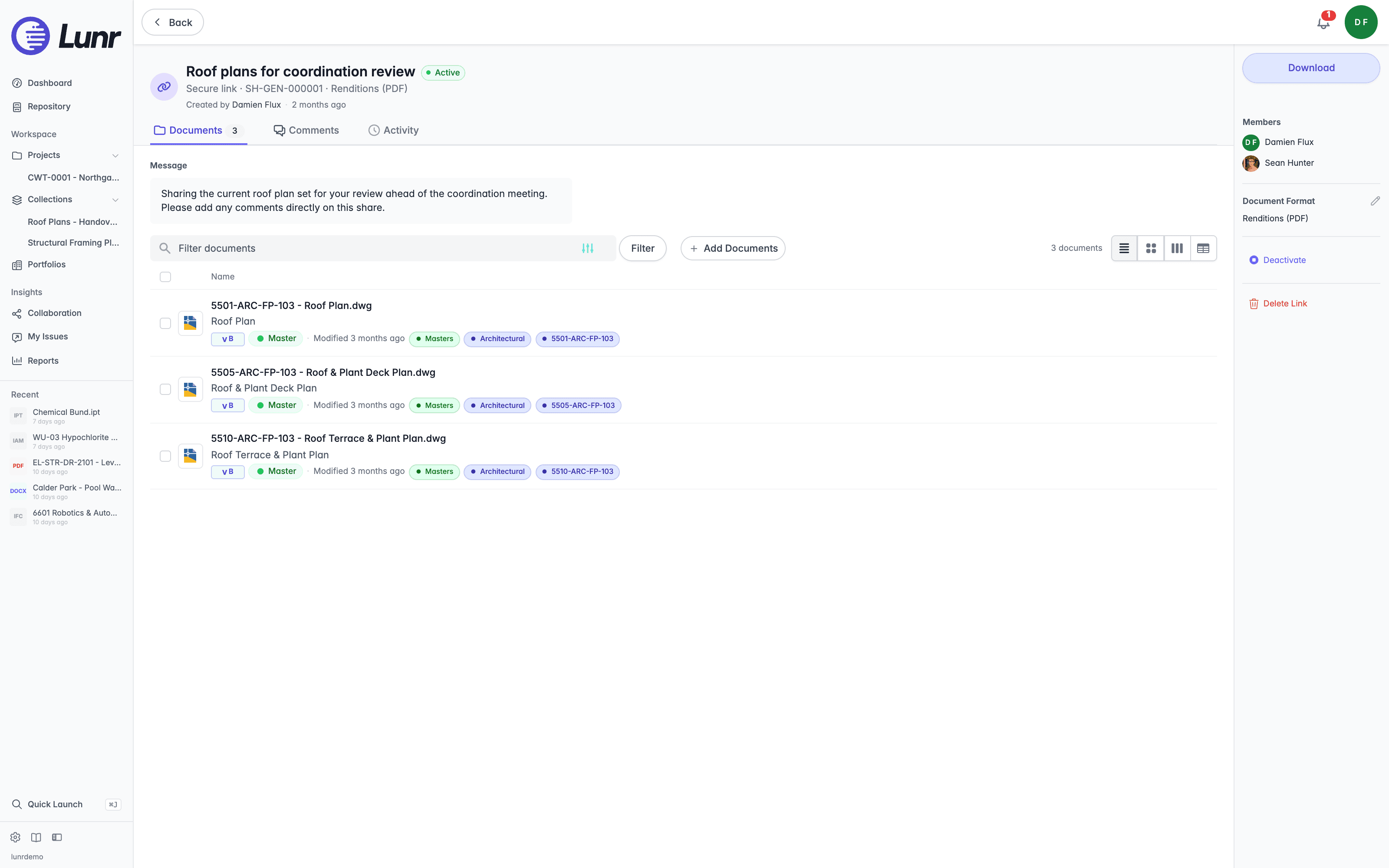
Three tabs sit below the header: Documents, with a count, Comments, and Activity. The Activity tab shows a history of actions taken on the share. A strip under the header marks an acknowledged transmittal in green and a closed out one in blue, with Reopen, and warns amber when you lack native download access.
Viewing and Filtering Documents
The Documents tab offers four view modes, a Filter documents field with its own sliders toggle, a Filter button, and Add Documents, using the same tools as the main repository. A count such as "3 documents" shows how many the share holds. Each row is compact, with a selection box, the file-type icon, the name as a link, the title, a version badge, a status badge, "Modified" with how long ago, and tag badges. A warning icon reads "PDF rendition is older than the native file and needs regenerating." where the rendition is out of date.
On a transmittal, the register columns Media Type, Copies, and Issue Status appear where your organisation has enabled them. They are free-text fields you fill in directly, and each saves as you leave it. An empty cell shows a dash, and pointing at it shows an "Add" prompt for that field. Select the arrows icon that appears to apply a value to all the listed documents.
Select one or more documents and a bar floats near the bottom of the window with the number selected, Add to Collection, and Remove from Link, which reads Remove from Transmittal on a transmittal. Add to Collection gathers the documents into a collection without going back to the repository to find them again. It works the same way as it does elsewhere, covered in Collections.
The Sidebar
The sidebar down the right of the page holds the share's actions.
- Download downloads the share's documents in the share's format.
- Members shows member avatars.
- Document Format shows the share's format, with a pencil icon to change it where you can. See Document Format.
- Deactivate (or Activate once a share is deactivated) and Delete Link, which reads Delete Transmittal on a transmittal, come last. Delete is for the creator and others who can manage the share.
A transmittal's sidebar starts with a primary button for its current state, Send, Acknowledge, or Close Out. Download follows it, then the other actions the transmittal allows, Acknowledge, Close Out, and Send Again, where a tooltip gives the reason if sending is not possible yet. After Members comes External Contact, showing the contact's name and company with a form to edit them, then Cover Sheet (Excel) and Cover Sheet (PDF). A cover sheet renders a tag that holds several values in full, rather than showing only the first.
Document Format
The share's header names its format after the share number, Renditions (PDF), Native files, or PDF and native files, and Download follows that format. A renditions share always downloads PDF renditions, whatever access the recipient holds. A native files share downloads native files to recipients who can download native files. A PDF and native files share downloads as one zip holding each document's PDF rendition and its native file, with the native files again only for recipients who can download them. A recipient who cannot download native files sees a warning that some documents may download as PDF renditions only.
The share's creator, and other users who can manage the share, can change its format after it is sent, provided they can share native files. A Document Format section in the sidebar shows the current format.
- Select the pencil icon beside Document Format.
- Select Renditions (PDF), Native files, or both.
- Select Save.
Lunr shows "Document format updated." and records the change on the Activity tab. Recipients are not emailed about the change.
Status
A share's status pill reads Active in green or Disabled in yellow. The Shares tab filter dropdown offers All, Active, and Inactive instead, so use the wording shown in whichever place you are looking. Deactivating a share hides it from everyone except its creator and users who can manage every share; there is no separate revoked state. Deleting a share is a soft delete, and only an administrator can restore it. A transmittal can also be closed out, covered below.
Closing Out a Transmittal
Where your organisation has transmittal acknowledgement enabled, a transmittal can be closed out once it no longer needs action, so its sender can tell an open transmittal from a settled one. Its creator or any member can close out an active transmittal.
- Select Close Out on the transmittal.
- In the Close out transmittal dialog, choose a Reason: Work complete or No longer required. Work complete is only available once the transmittal has been acknowledged.
- Optionally add a Comment for the sender.
- Select Close out.
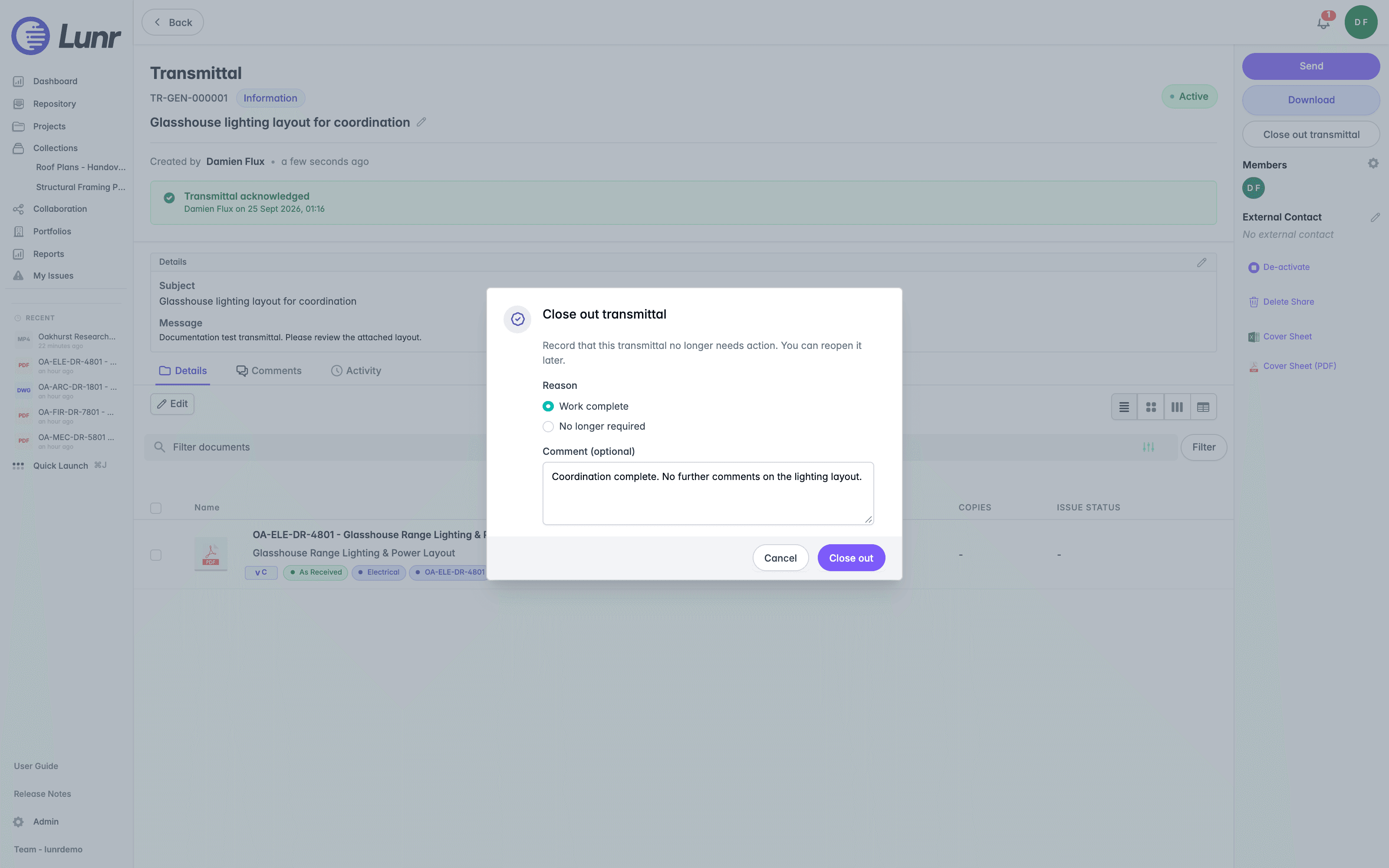
A Transmittal closed out banner then shows who closed it out, when, the reason, and the comment. Select Reopen on the banner to open it again.
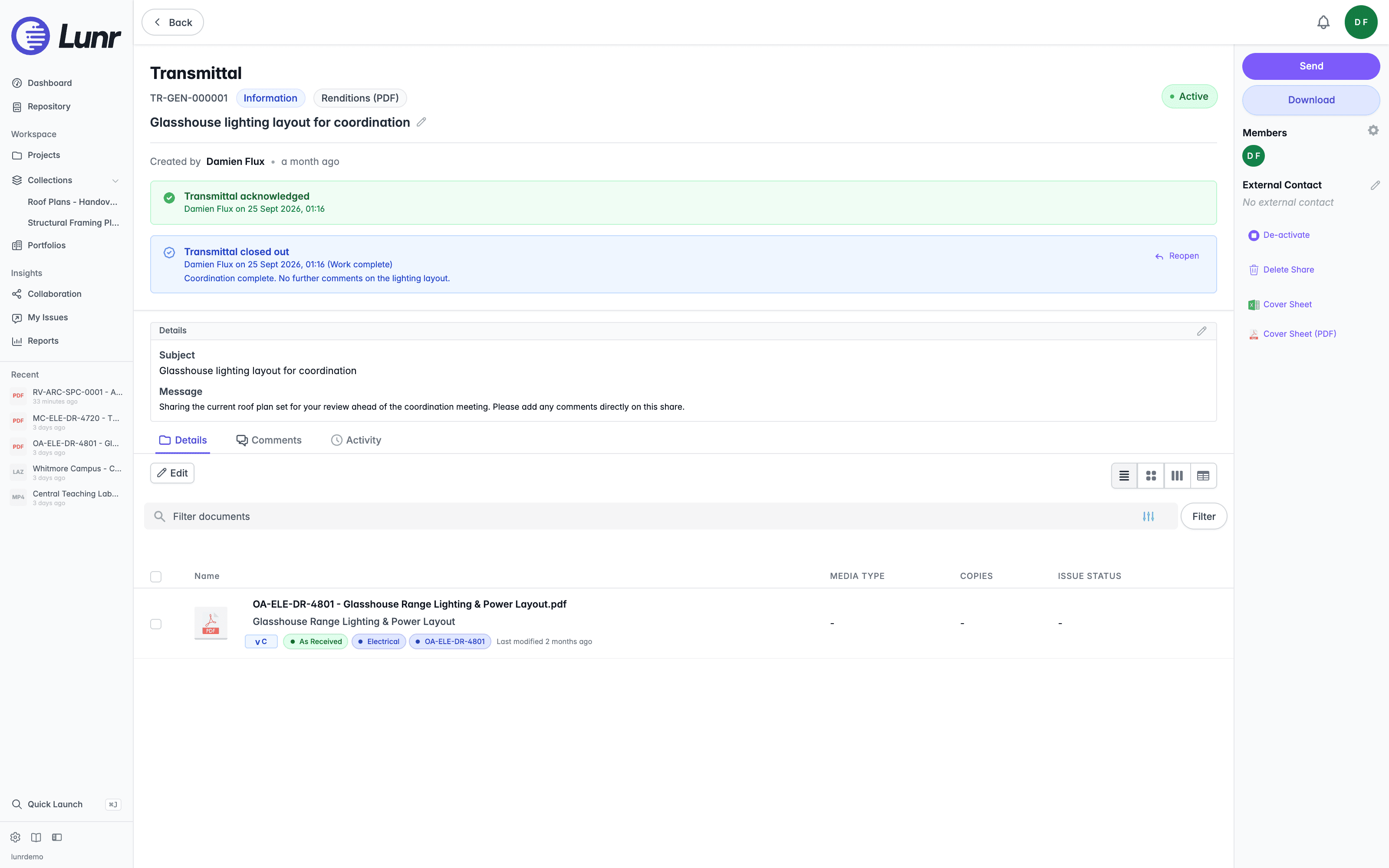
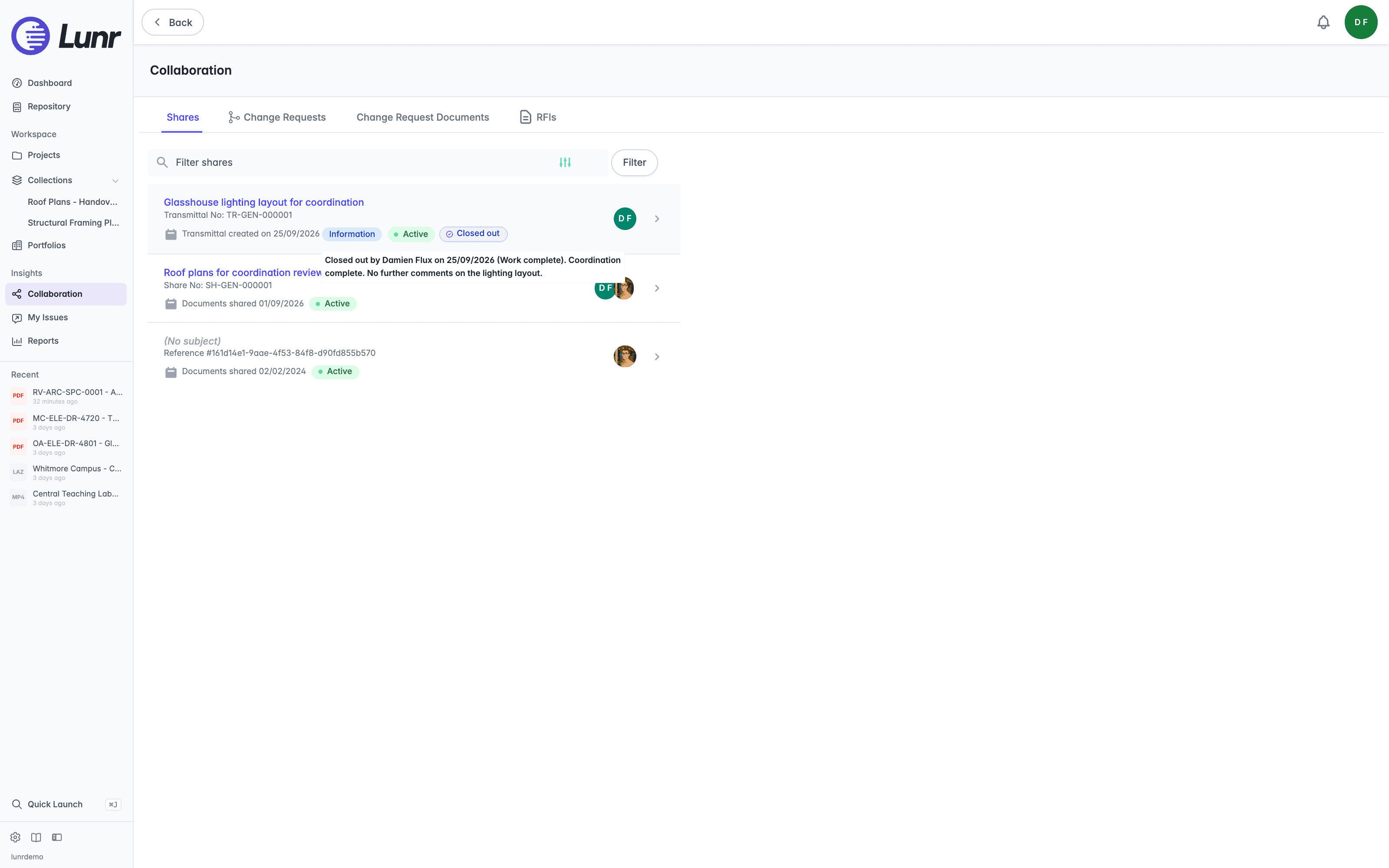
In the list of shares, a transmittal's pill reads Awaiting acknowledgement, Acknowledged, or Closed out. Point at a Closed out pill to see who closed it out, when, and why.
Members and Permissions
A share's members are set by the recipients you choose when you create it, and are listed in the Members section on the share page.
Members can only be changed on a transmittal. On a transmittal, its creator, or a user who can manage every share, gets a settings cog beside Members that opens a "Select a member" popover with a "Type or choose a name" search. The creator is labelled "(Creator)" and can never be removed. A Secure link share offers no such control, so decide its recipients before you send it.
Only the share's creator, or a user who can manage every share, can activate or deactivate the share, delete it, or send it. Any member can view the share, add or remove documents, comment, and, for a transmittal, acknowledge it. There is no read-only member tier.
Comments
Select the Comments tab to read or post comments. Only members of a share can comment.
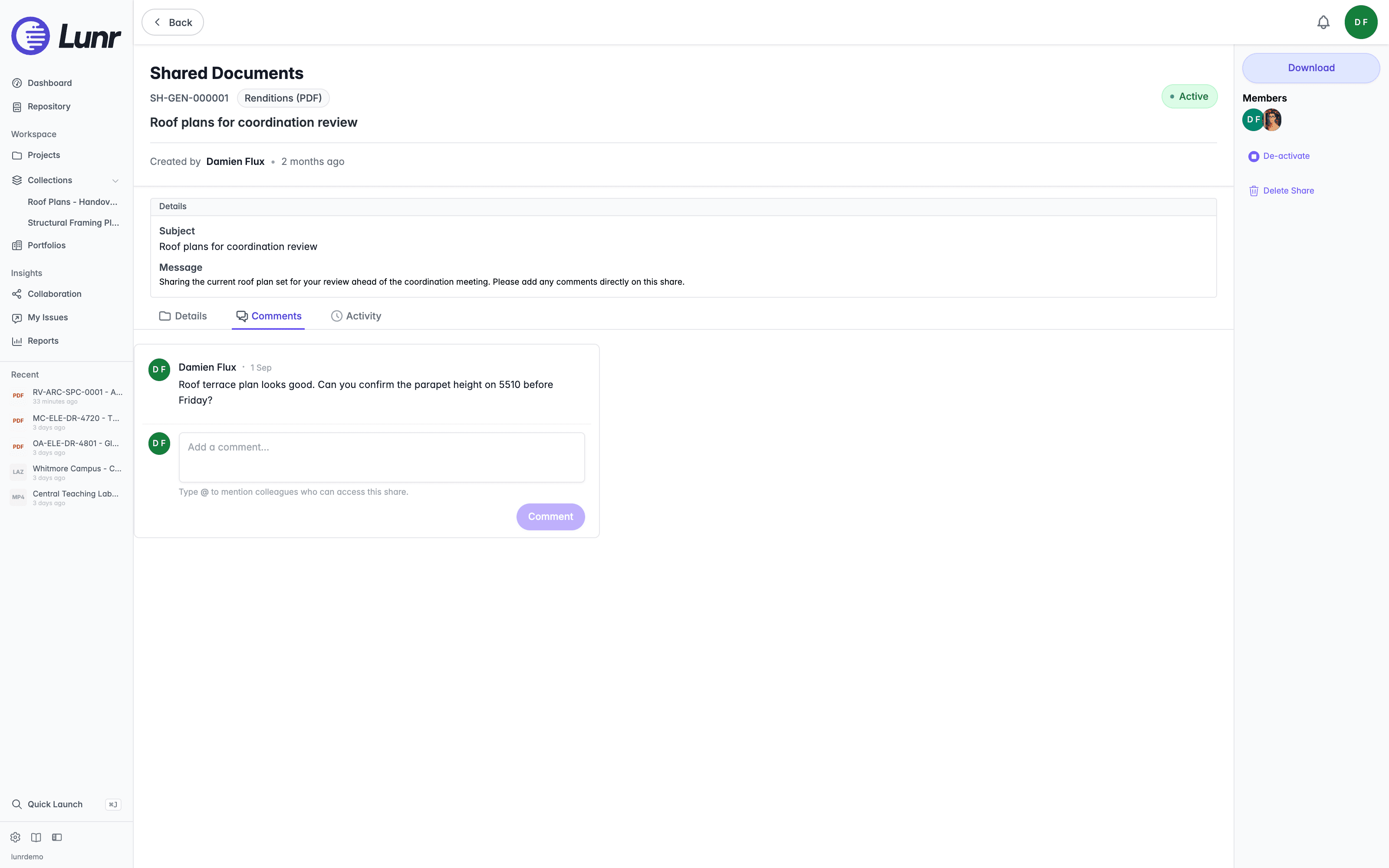
Enter @ in the composer to mention a colleague. You can only mention other members of the share, and a mentioned person gets a mention notification rather than the usual new-comment notification. You can resolve your own comments, or any comment if your organisation allows you to, and reopen a resolved comment later. Share comments do not support attachments.
Adding and Removing Documents
To add documents to an existing share, select them anywhere in the repository, open the More menu at the foot of the Action Pane, and choose Assign to, then Add to Share. This opens an "Add documents to share" dialog with a Select share field and an Add to Share button.
To remove documents from a share, select them within the share page and select Remove from Link in the bar at the bottom of the window, which reads Remove from Transmittal on a transmittal.
Introduction to Collaboration
The Collaboration area gathers the ways you exchange documents with other Lunr users, covering its tabs, what a share is, and where to find shares and requests for information.
Change Requests
List every Change Request across your projects in Lunr, filter by status, people, and dates, group and add tag columns, save the view as a report, and export it to Excel or PDF.