Drawing References
Monitor how well drawing numbers printed on drawings are linked to other drawings in the Rift viewer, find numbers that match no drawing, and set the labels, number tags, and minimum digits Lunr uses when matching.
Overview
Where drawing references are enabled, Lunr reads the drawing numbers printed on each drawing and links them to the drawings they name. Users see these links as hotspots in the Rift viewer and in the Related view of a document. The Drawing References page reports how well the matching is working.
Select Drawing References in the Content settings group of the admin main menu. The page requires the Administration Pages access right.
Enabling Drawing References
Drawing references are disabled by default. Enable Link Drawing References in Rift in the Document tab of General Settings. Until it is enabled, the Drawing References page asks you to enable it and offers Open Document Settings.
New and updated drawings are scanned as they are processed. Enabling the setting does not scan drawings already in Lunr. Run a scan from Data Tools when you are ready.
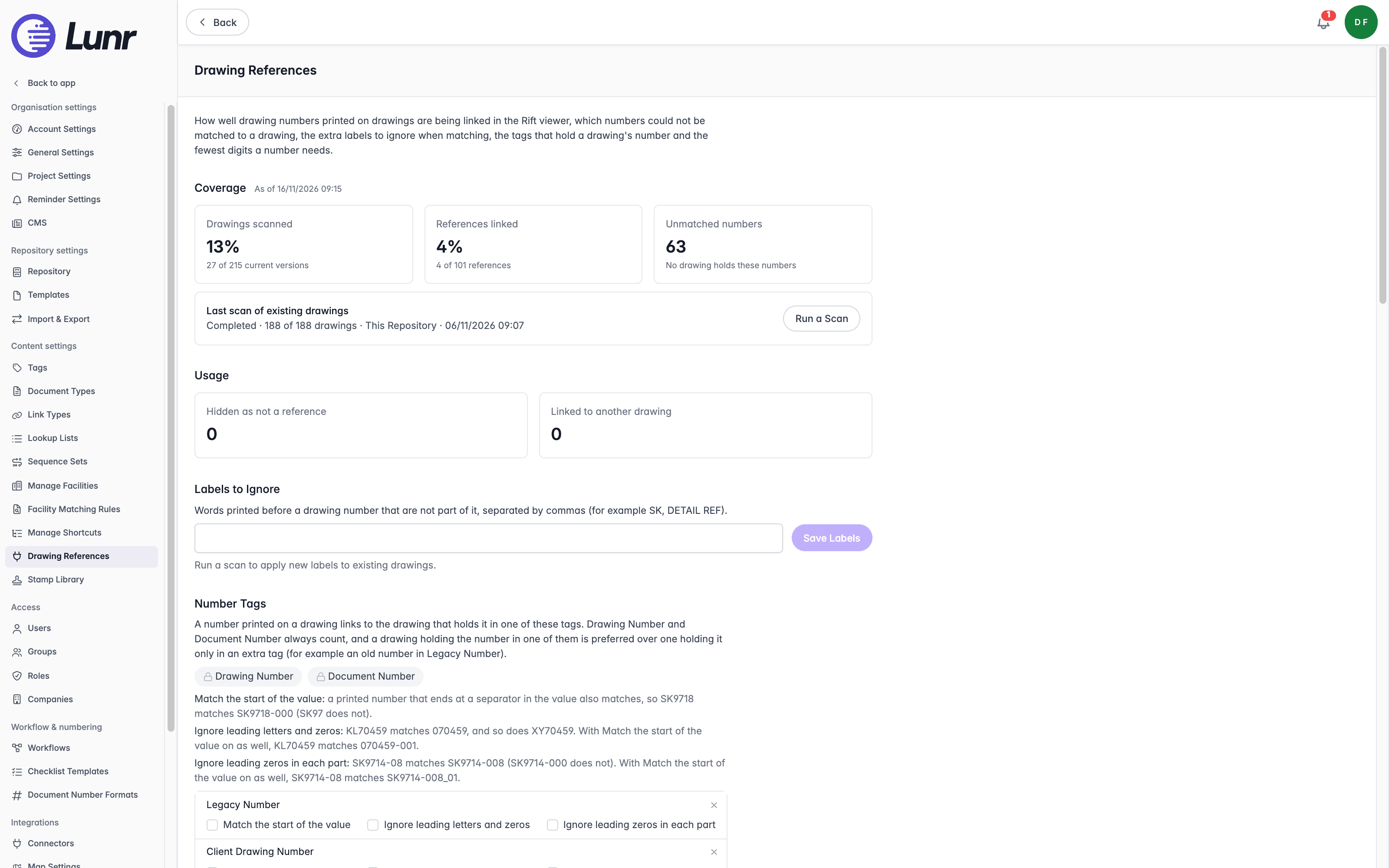
Coverage
Coverage shows three figures. The date and time beside the heading, such as As of 14/11/2026 9:30 AM, show when the figures were last built. After a scan, the page shows the previous figures while it rebuilds them in the background, so they can be a few minutes behind the latest scan.
| Figure | What it shows |
|---|---|
| Drawings scanned | The share of current versions that have been scanned. |
| References linked | The share of detected references that match a drawing. |
| Unmatched numbers | The count of numbers that no drawing holds. |
Last scan of existing drawings shows the most recent run. Where a drawing number format has appeared that earlier scans did not know, the page reports it and recommends a scan. Select Run a Scan to open the Drawing Reference Scan tool.
Usage
Usage shows how many references users have hidden as Hidden as not a reference, and how many they have pointed at a different drawing as Linked to another drawing.
Labels to Ignore
Words printed before a drawing number that are not part of it, such as SK or DETAIL REF, can be excluded from matching. Enter them in the field, separated by commas, then select Save Labels. Run a scan to apply new labels to existing drawings.
Number Tags
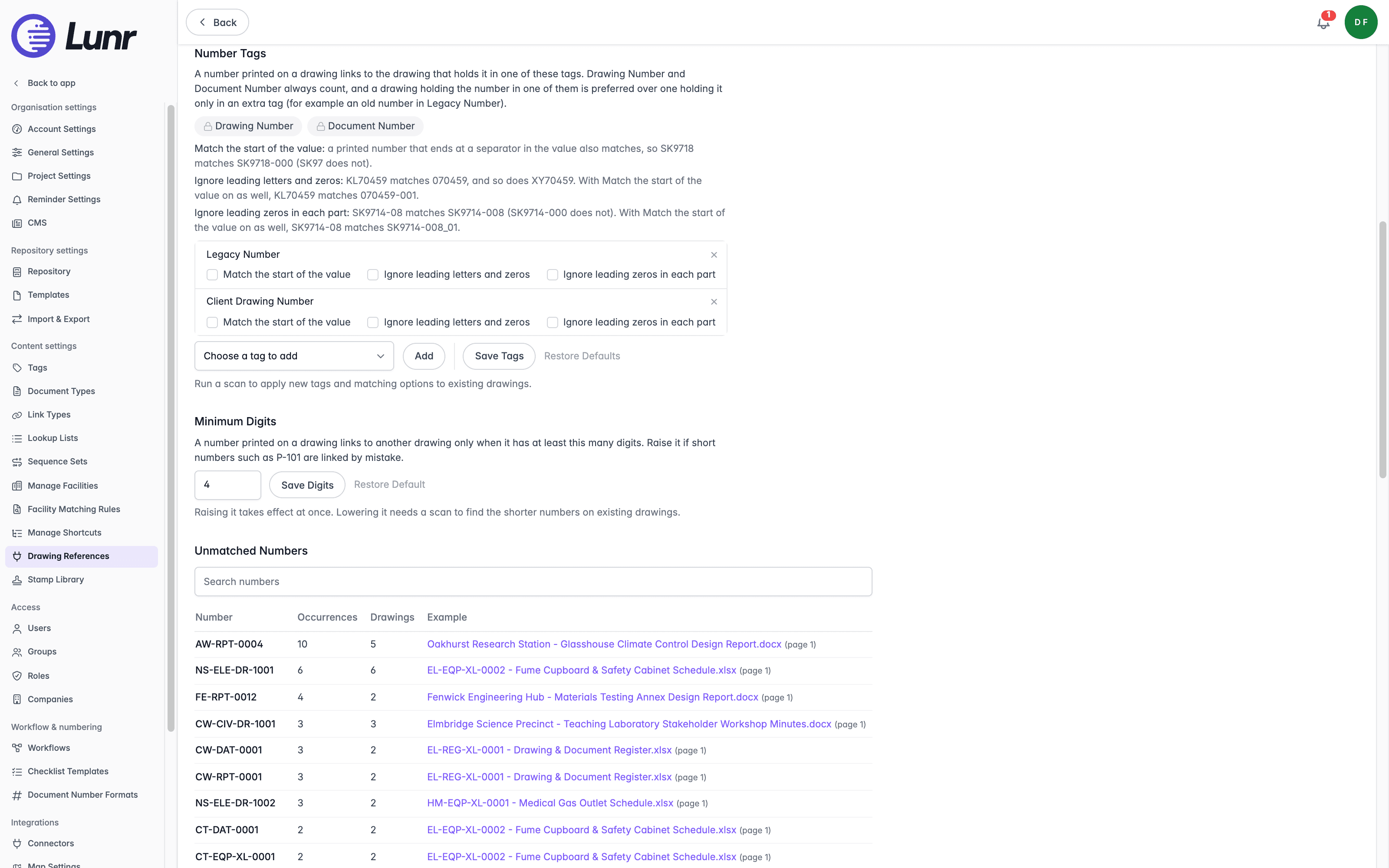
A number printed on a drawing links to the drawing that holds it in one of the number tags. Drawing Number and Document Number always count and cannot be removed. You can add up to 20 extra tags, such as Legacy Number or Client Drawing Number, for drawings that are cited under an older or client number. A drawing that holds the number in Drawing Number or Document Number is preferred over one that holds it only in an extra tag.
By default, the extra tags are Legacy Number and Client Drawing Number. A default tag that has not been set up in your organisation is highlighted in yellow. Remove it before you save.
To add a tag:
- Select the tag in the Choose a tag to add dropdown list.
- Select Add.
- Set the matching options for the tag, described below.
- Select Save Tags.
Select the x beside an extra tag to remove it, and Restore Defaults to return to the default tags.
Each extra tag has three matching options, all cleared by default. Without them, a printed number must match the whole tag value.
| Option | What it matches |
|---|---|
| Match the start of the value | A printed number that ends at a separator in the tag value, so SK9718 matches SK9718-000, but SK97 does not. |
| Ignore leading letters and zeros | A printed number whose leading letters stand where the tag value has leading zeros, so KL70459 and XY70459 both match 070459. With Match the start of the value also selected, KL70459 matches 070459-001. |
| Ignore leading zeros in each part | A printed number whose parts are zero-padded differently from the tag value, so SK9714-08 matches SK9714-008, but not SK9714-000. With Match the start of the value also selected, SK9714-08 matches SK9714-008_01. |
Run a scan to apply new tags and matching options to existing drawings. Removing a tag takes effect immediately.
Minimum Digits
A number printed on a drawing links to another drawing only when it has at least this many digits. The default is 4. Raise it if short numbers, such as P-101, are linked by mistake.
Enter a value from 1 to 10, then select Save Digits. Select Restore Default to return to 4. Raising the value takes effect immediately. Lowering it needs a scan to find the shorter numbers on existing drawings.
Unmatched Numbers
Unmatched Numbers lists the numbers that no drawing holds, with Number, Occurrences, Drawings, and Example columns. Use the Search numbers field to find one.
Manage Shortcuts
Define saved, tag-based virtual folder hierarchies that let users browse documents by metadata such as discipline or building, instead of the physical project and folder structure.
Stamp Library
Manage the organisation's shared library of SVG stamps used in the viewer, including uploads, bulk deletion, groups, stamp details, CSV metadata import, and the library size limits.