Stamp Library
Manage the organisation's shared library of SVG stamps used in the viewer, including uploads, bulk deletion, groups, stamp details, CSV metadata import, and the library size limits.
Overview
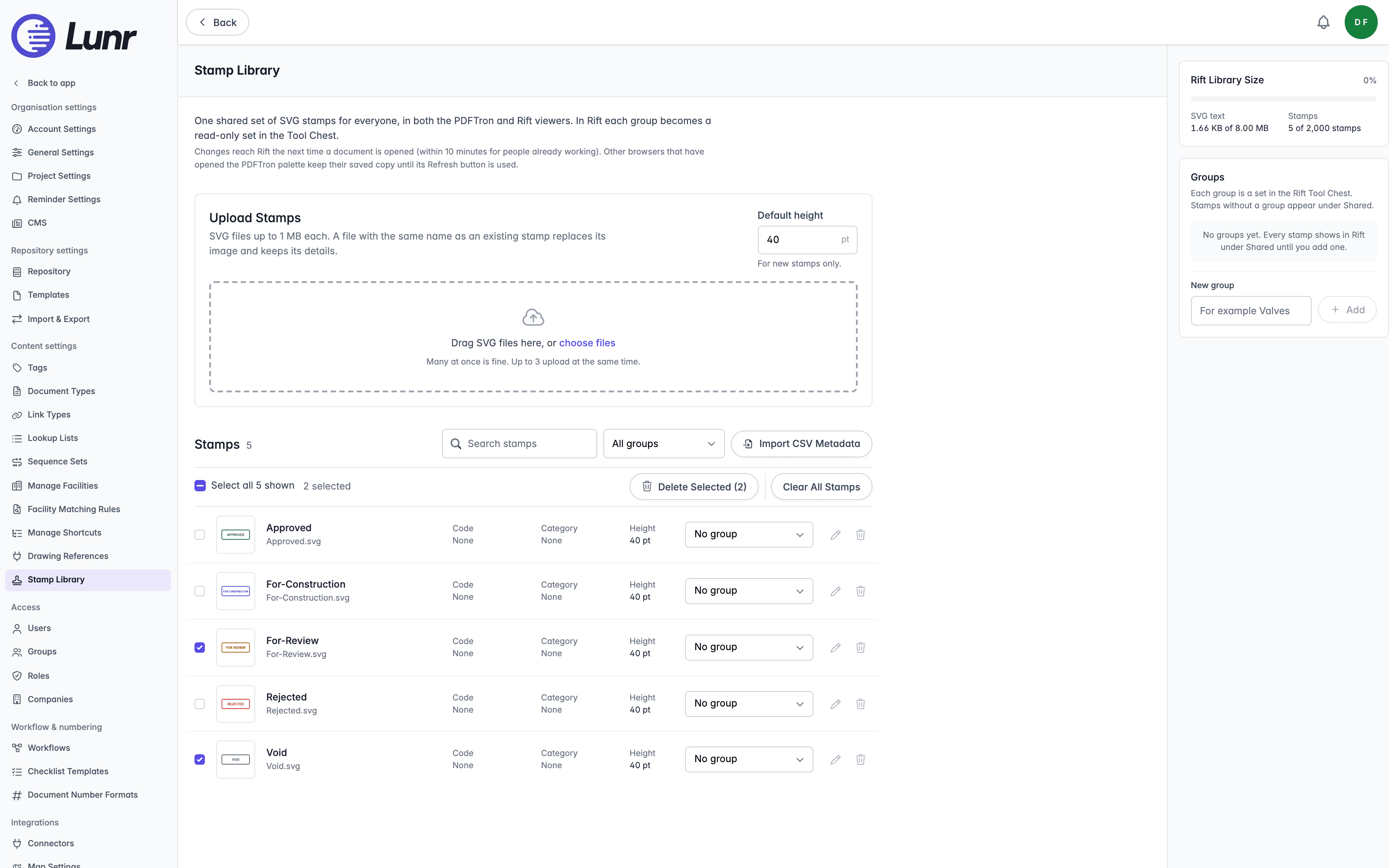
The Stamp Library is one shared set of SVG stamps for the whole organisation. Users place its stamps as annotations in the viewer, where each group becomes a read-only set in the Tool Chest, shown to users who can add annotations, and stamps without a group appear under Shared.
Select Stamp Library in the Content settings group of the admin sidebar. The page and every change on it require the Release As Master access right, not Administration Pages. Any signed-in user can read the library through the viewer.
Changes reach the viewer later
The viewer picks up changes the next time a document is opened, and within 10 minutes for people already working.
Uploading Stamps
The Upload Stamps panel accepts SVG files up to 1 MB each. Drag files onto the panel, or select choose files. Many files can be added at once, and up to three upload at the same time.
Each file is listed with its progress. Select Retry on a file that failed, remove a file from the list with its remove icon, or select Clear Finished to tidy completed entries.
- Default height sets the height, in points, of each new stamp. Enter a whole number from 10 to 500. The default is 40. It applies to new stamps only.
- A file with the same name as an existing stamp replaces that stamp's image and keeps its details. Names are case-sensitive, so Valve.svg and valve.svg are two stamps.
- A file that the viewer is likely to reject, for example one over 256 KB, is flagged as one that may not appear in the viewer. It still uploads.
Managing Stamps
The Stamps list shows every stamp with its thumbnail, name, and, where set, its code, category, and height. Enter text in the Search stamps field to narrow the list, or choose a group, or No group, from the group filter. If no stamps match, select Clear Filters.
On a stamp's row:
- Choose a group from the row's group list to move the stamp into it, or No group to remove it from its group.
- Select the edit icon to change the stamp's Name, Code, Category, and Height (pt), then select Save, or Cancel to discard the changes. The Name field shows the file name until you enter a name.
- Select the delete icon to remove the stamp. A confirmation prompt appears first.
Deleting a stamp also removes its name, code, category, and group, so a file uploaded later with the same name starts with fresh details.
Deleting Several Stamps
To delete several stamps at once, select the box on each stamp's row, or select Select all N shown to select every stamp the search and group filter currently show. Then select Delete Selected. To empty the library, for example before importing a full set again, select Clear All Stamps. Each action asks you to confirm, naming the number of stamps.
A progress bar shows the deletion. If any stamps could not be deleted, they stay in the library and are listed. Select Retry Failed to try them again, or Dismiss to close the list.
Groups
The Groups panel organises stamps into sets. Each group becomes a set in the viewer's Tool Chest, and stamps without a group appear under Shared.
- Enter a name in the New group field, up to 100 characters, then select Add.
- Select the rename icon on a group to change its name, then select Save.
- Select the delete icon on a group to remove it.
The number beside each group is how many stamps it holds.
Importing CSV Metadata
Select Import CSV Metadata to set the name, code, and category of stamps already in the library from a CSV file. The file has the columns Symbol Name, Code, and Category. Select Choose CSV File, or paste the CSV text into the dialog, then select Preview. Nothing is saved until you apply the preview.
- Each Code matches the stamp whose file name is that code, or the only file name that contains it.
- A Category with the same name as a group also moves the stamp into that group.
- The preview lists the rows that match a stamp and the rows that match none, which are skipped, with the reason for each.
The import is unavailable while an upload is running.
Library Size
The library size panel at the top right of the page compares the library with the limits the viewer applies: 8 MB of SVG text and 2,000 stamps. A warning appears as the library nears a limit, and again when it is over. Beyond the limits, some stamps do not appear in the viewer.
Drawing References
Monitor how well drawing numbers printed on drawings are linked to other drawings in the Rift viewer, find numbers that match no drawing, and set the labels, number tags, and minimum digits Lunr uses when matching.
Users
Manage the people who can sign in to Lunr, invite internal and external users, and control the roles and document permissions each person holds.