Facility Matching Rules
Define how facility identifiers, such as asset numbers and equipment tags, are written on your drawings, test each rule against the drawing text Lunr already holds, and enable the rules that are safe to use for facility references.
Overview
Drawings often cite equipment, plant, and sites from the facility register by an identifier, such as P-101 or a 12-digit asset number. A facility matching rule describes how one facility property is written on your drawings, so that Lunr can recognise it. Because registers can hold very large numbers of facilities, each rule is tested on your own drawings before it can be enabled, which keeps a careless rule from linking drawings to the wrong facilities.
Rules are the first stage of linking drawings to facilities. Enabling a rule records that it is ready for use when drawings are scanned for facility references. It does not yet add links or hotspots to drawings.
Select Facility Matching Rules in the Content settings group of the admin main menu. The page requires both the Administration Pages and Create Facilities access rights.
Rules apply to the whole organisation. Without the View all document repositories access right, tests cover only your current repository, and you cannot enable or delete a rule.
Pattern Syntax
Select Pattern syntax at the top of the page to show how patterns are written. Values are compared with separators removed and letters in upper case.
| Pattern | What it matches |
|---|---|
| 'SS' | The exact text SS. |
| A3 | Three letters. |
| 9-2 | Three to five digits. A-1 is an optional letter. |
| | | Or, between alternatives. |
| +spaces | At the end of a pattern, the parts may be separated by single spaces. |
For example, 'P' 93 A-1 matches P-101 and P-101A. Labels are words that must appear just before the value, such as Asset No. A pattern of digits only always needs at least one label.
Proposing Rules
Lunr can propose rules by sampling your facility register. When there are no rules yet, the sampling form is shown on the page. Once rules exist, select Propose rules to open it.
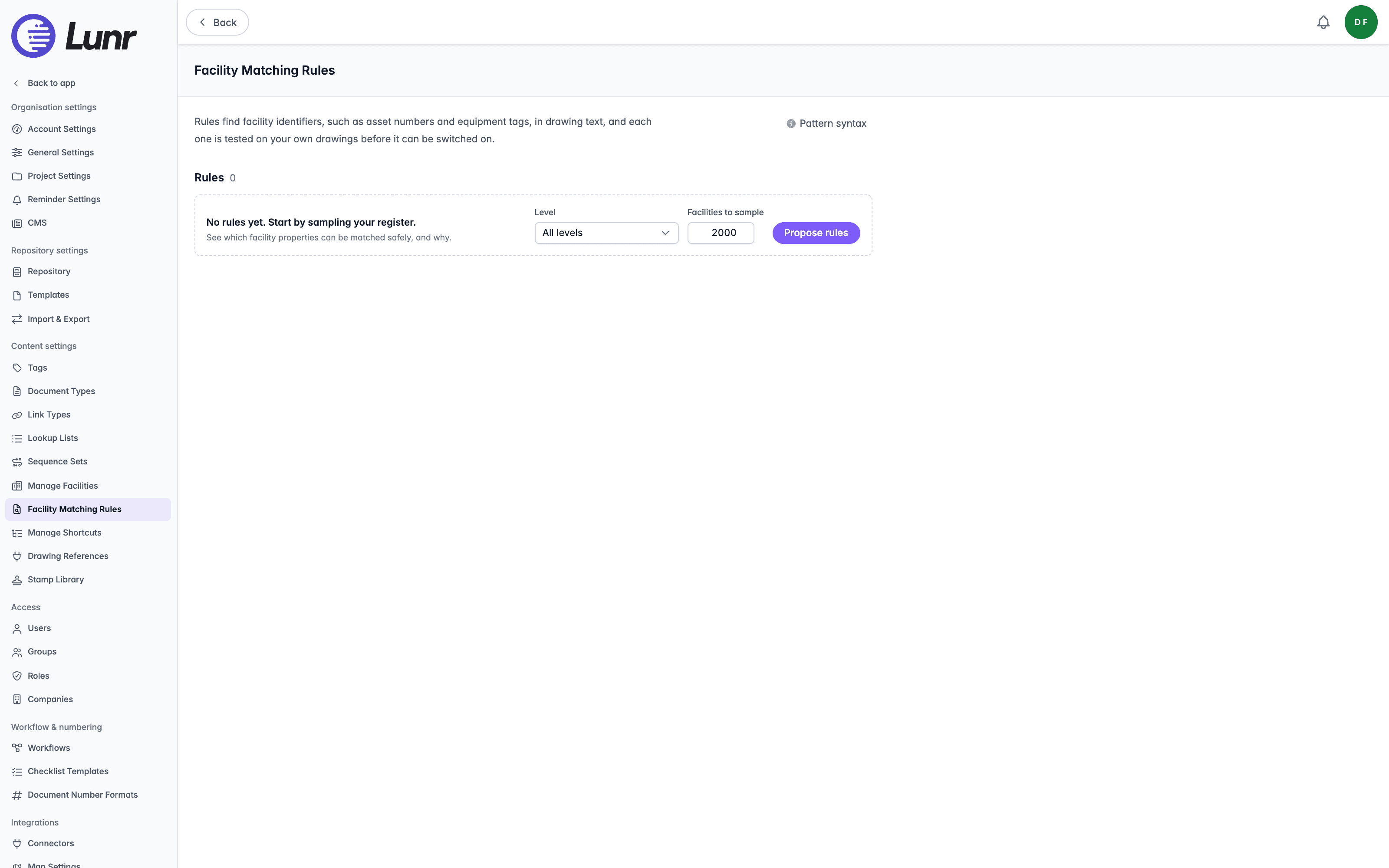
- Choose a Level, or leave it as All levels.
- Enter the number of Facilities to sample.
- Select Propose rules.
Each facility property is listed with a proposed Pattern, the share of sampled values that are Unique to one facility, the share the pattern has Covered, and a verdict. Expand a property to see why it is or is not recommended, its pattern alternatives with examples, how many values are also drawing numbers, and the values held by more than one facility. Properties made only of letters, short codes, or names cannot be matched safely.
To create a rule from a proposal, select Create rule. For a proposal that is not recommended, select Review, enter any Labels, and then select Create rule. A new rule starts disabled.
Testing a Rule
Expand a rule to see its pattern, labels, version, and status. A test reads the text Lunr already holds for a random sample of current drawings. It never opens a file or runs OCR.
- Under Test on your drawings, enter the Sample size in drawings.
- Select Run test, or Test again to repeat a test.
The result shows how many mentions matched One facility, Several facilities, or were Not in the register, together with Drawings with a match and Facilities found. Select Show examples from the drawings to see each mention in context, with the drawing and the facility it matched. A rule meets the bar with at least 20 matches and no more than 5% of mentions that match several facilities or none. A test that stops before reading the whole sample cannot meet the bar.
Enabling a Rule
A rule can be enabled once its current version has been tested across every repository. Select Enable rule. If the last test did not meet the bar, enter a Reason for enabling below the bar before you enable it. The rule then shows as Enabled by override, with the reason.
Select Edit to change a rule's Pattern or Labels, then Save. Saving a change disables the rule until it is tested again. Select Disable to stop using a rule, or Delete to remove it.
Every change, enable, disable, and delete is recorded in the audit log.
Related
Facility levels and properties are set up on the Manage Facilities page. Drawing numbers printed on drawings are matched separately, as described in Drawing References.
Manage Facilities
Define the facility hierarchy Lunr uses to model buildings, floors, and other physical locations, along with the custom tags captured at each level.
Manage Shortcuts
Define saved, tag-based virtual folder hierarchies that let users browse documents by metadata such as discipline or building, instead of the physical project and folder structure.